分类 技术 下的文章

Twitter 允许用户将博客帖子和文章分享给全世界。使用 Python 和 Tweepy 库使得创建一个 Twitter 机器人来接管你的所有的推特变得非常简单。这篇文章告诉你如何去构建这样一个机器人。希望你能将这些概念也同样应用到其他的在线服务的项目中去。

开始

tweepy 库可以让创建一个 Twitter 机器人的过程更加容易上手。它包含了 Twitter 的 API 调用和一个很简单的接口。

下面这些命令使用 pipenv 在一个虚拟环境中安装 tweepy。如果你没有安装 pipenv,可以看一看我们之前的文章如何在 Fedora 上安装 Pipenv

$ mkdir twitterbot
$ cd twitterbot
$ pipenv --three
$ pipenv install tweepy
$ pipenv shell

Tweepy —— 开始

要使用 Twitter API ,机器人需要通过 Twitter 的授权。为了解决这个问题, tweepy 使用了 OAuth 授权标准。你可以通过在 https://apps.twitter.com/ 创建一个新的应用来获取到凭证。

创建一个新的 Twitter 应用

当你填完了表格并点击了“ 创建你自己的 Twitter 应用 Create your Twitter application ”的按钮后,你可以获取到该应用的凭证。 Tweepy 需要 用户密钥 API Key 用户密码 API Secret ,这些都可以在 “ 密钥和访问令牌 Keys and Access Tokens ” 中找到。

向下滚动页面,使用“ 创建我的访问令牌 Create my access token ”按钮生成一个“ 访问令牌 Access Token ” 和一个“ 访问令牌密钥 Access Token Secret ”。

使用 Tweppy —— 输出你的时间线

现在你已经有了所需的凭证了,打开一个文件,并写下如下的 Python 代码。

import tweepy
auth = tweepy.OAuthHandler("your_consumer_key", "your_consumer_key_secret")
auth.set_access_token("your_access_token", "your_access_token_secret")
api = tweepy.API(auth)
public_tweets = api.home_timeline()
for tweet in public_tweets:
    print(tweet.text)

在确保你正在使用你的 Pipenv 虚拟环境后,执行你的程序。

$ python tweet.py

上述程序调用了 home_timeline 方法来获取到你时间线中的 20 条最近的推特。现在这个机器人能够使用 tweepy 来获取到 Twitter 的数据,接下来尝试修改代码来发送 tweet。

使用 Tweepy —— 发送一条推特

要发送一条推特 ,有一个容易上手的 API 方法 update_status 。它的用法很简单:

api.update_status("The awesome text you would like to tweet")

Tweepy 拓展为制作 Twitter 机器人准备了非常多不同有用的方法。要获取 API 的详细信息,请查看文档

一个杂志机器人

接下来我们来创建一个搜索 Fedora Magazine 的推特并转推这些的机器人。

为了避免多次转推相同的内容,这个机器人存放了最近一条转推的推特的 ID 。 两个助手函数 store_last_idget_last_id 将会帮助存储和保存这个 ID。

然后,机器人使用 tweepy 搜索 API 来查找 Fedora Magazine 的最近的推特并存储这个 ID。

import tweepy

def store_last_id(tweet_id):
    """ Stores a tweet id in text file """
    with open('lastid', 'w') as fp:
        fp.write(str(tweet_id))


def get_last_id():
    """ Retrieve the list of tweets that were
    already retweeted """

    with open('lastid') as fp:
        return fp.read()

if __name__ == '__main__':

    auth = tweepy.OAuthHandler("your_consumer_key", "your_consumer_key_secret")
    auth.set_access_token("your_access_token", "your_access_token_secret")

    api = tweepy.API(auth)

    try:
        last_id = get_last_id()
    except FileNotFoundError:
        print("No retweet yet")
        last_id = None

    for tweet in tweepy.Cursor(api.search, q="fedoramagazine.org", since_id=last_id).items():
        if tweet.user.name  == 'Fedora Project':
            store_last_id(tweet.id)
            #tweet.retweet()
            print(f'"{tweet.text}" was retweeted')

为了只转推 Fedora Magazine 的推特 ,机器人搜索内容包含 fedoramagazine.org 和由 「Fedora Project」 Twitter 账户发布的推特。

结论

在这篇文章中你看到了如何使用 tweepy 的 Python 库来创建一个自动阅读、发送和搜索推特的 Twitter 应用。现在,你能使用你自己的创造力来创造一个你自己的 Twitter 机器人。

这篇文章的演示源码可以在 Github 找到。


via: https://fedoramagazine.org/learn-build-twitter-bot-python/

作者:Clément Verna 选题:lujun9972 译者:Bestony 校对:校对者ID

本文由 LCTT 原创编译,Linux中国 荣誉推出

Fedora 28 Workstation 添加了一个功能允许你使用键盘快速搜索、选择和输入 emoji。emoji,这种可爱的表意文字是 Unicode 的一部分,在消息传递中使用得相当广泛,特别是在移动设备上。你可能听过这样的成语:“一图胜千言”。这正是 emoji 所提供的:简单的图像供你在交流中使用。Unicode 的每个版本都增加了更多 emoji,在最近的 Unicode 版本中添加了 200 多个 emoji。本文向你展示如何使它们在你的 Fedora 系统中易于使用。

很高兴看到 emoji 的数量在增长。但与此同时,它带来了如何在计算设备中输入它们的挑战。许多人已经将这些符号用于移动设备或社交网站中的输入。

[编者注:本文是对此主题以前发表过的文章的更新]。

在 Fedora 28 Workstation 上启用 emoji 输入

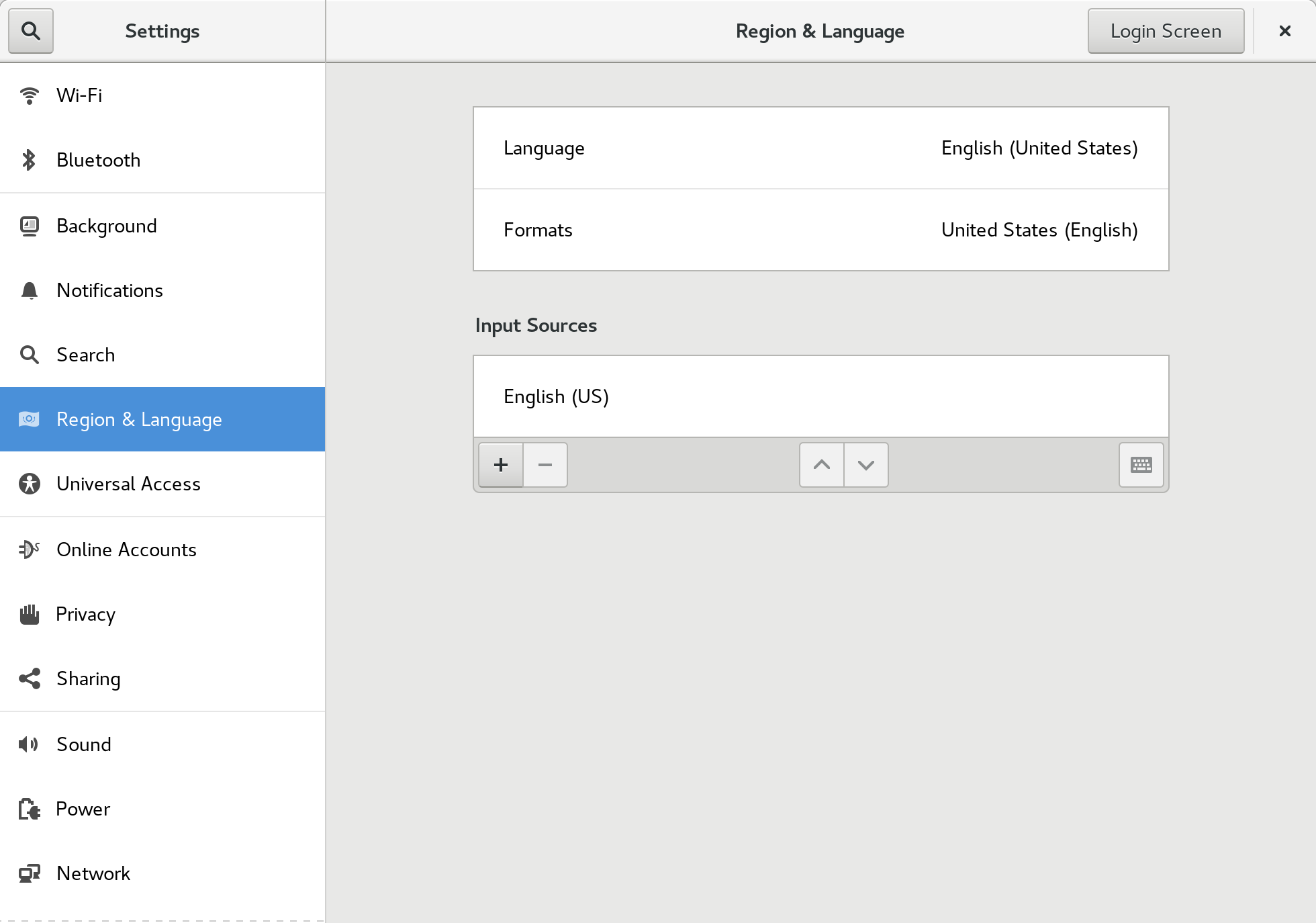
新的 emoji 输入法默认出现在 Fedora 28 Workstation 中。要使用它,必须使用“区域和语言设置”对话框启用它。从 Fedora Workstation 设置打开“区域和语言”对话框,或在“概要”中搜索它。

Region & Language settings tool

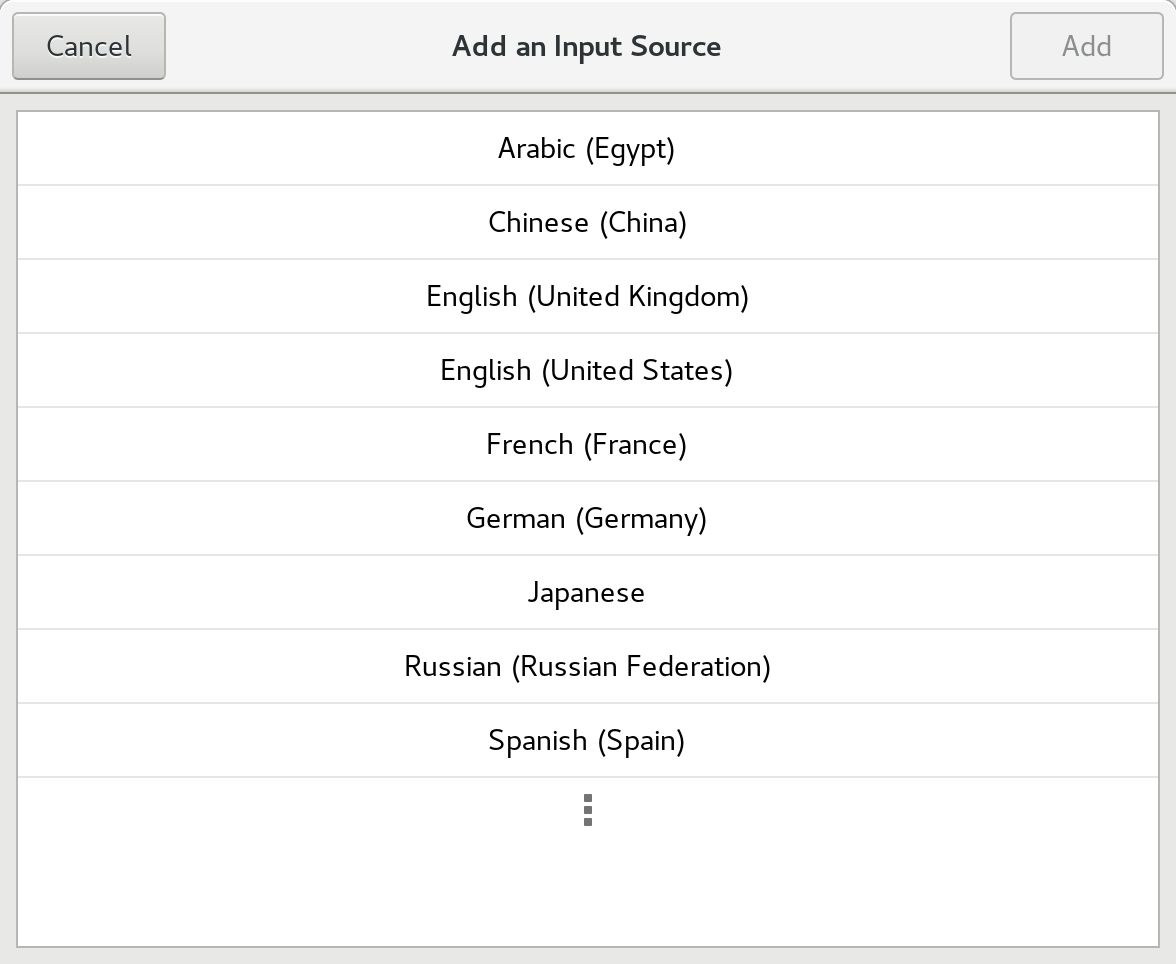
选择 + 控件添加输入源。出现以下对话框:

Adding an input source

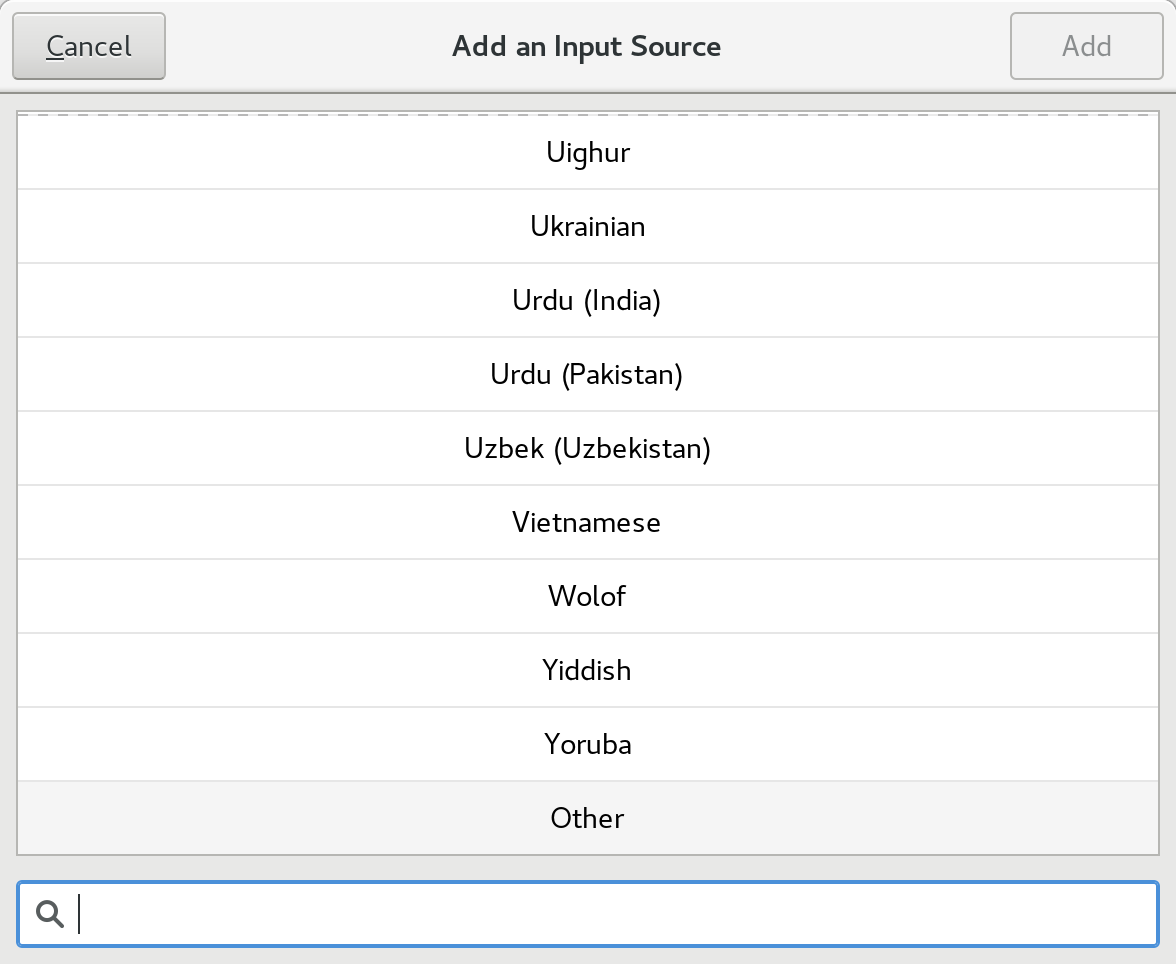
选择最后选项(三个点)来完全展开选择。然后,在列表底部找到“Other”并选择它:

Selecting other input sources

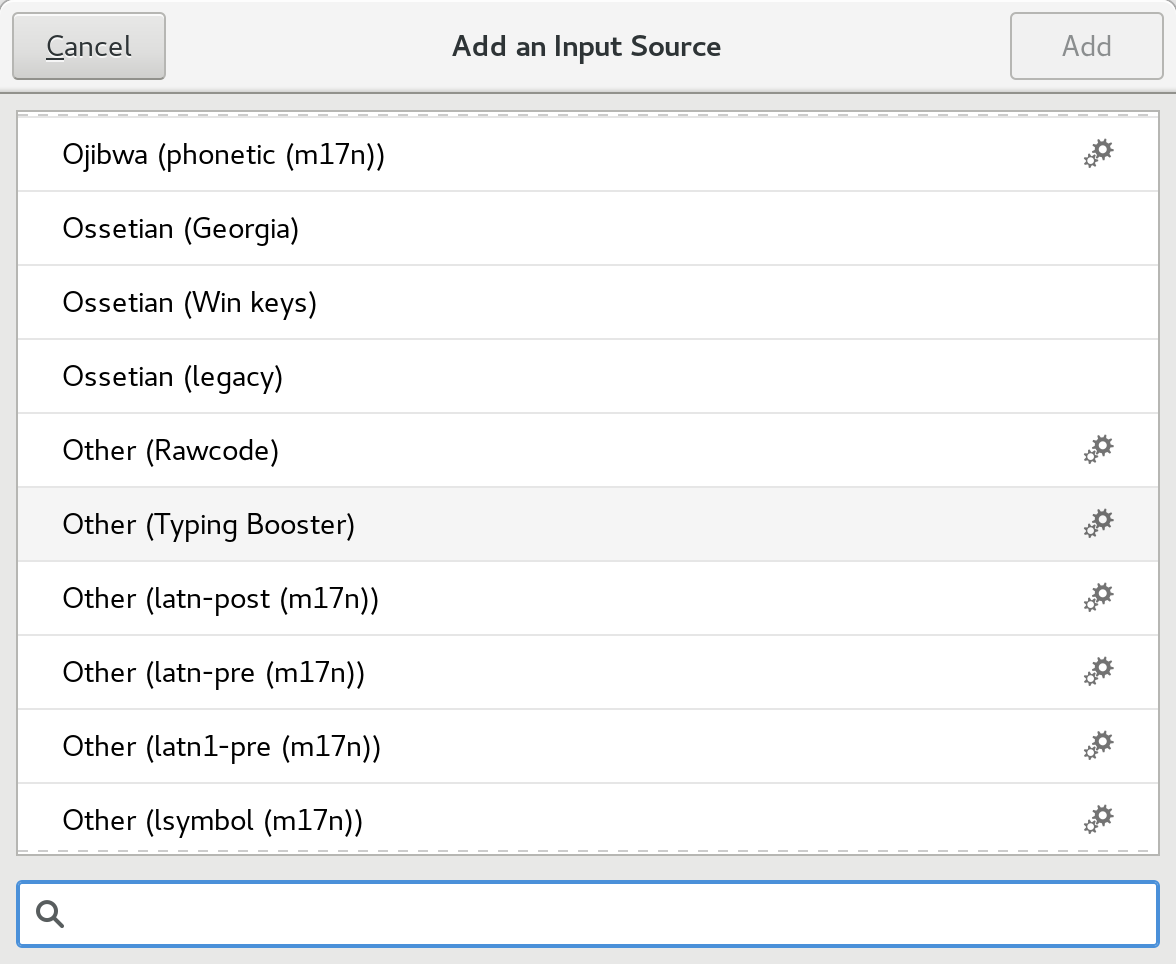
在下面的对话框中,找到 “Typing Booster” 选项并选择它:

这个高级输入法由 iBus 在背后支持。该高级输入法可通过列表右侧的齿轮图标在列表中识别。

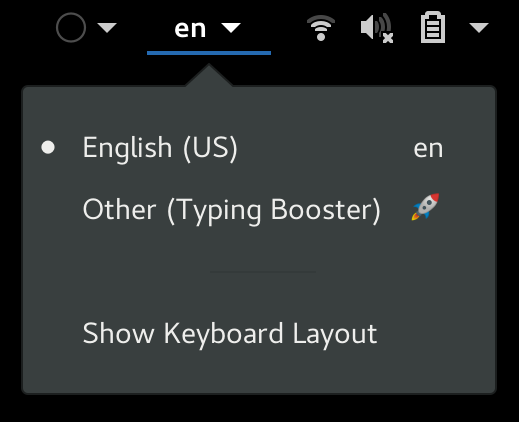
输入法下拉菜单自动出现在 GNOME Shell 顶部栏中。确认你的默认输入法 —— 在此示例中为英语(美国) - 被选为当前输入法,你就可以输入了。

Input method dropdown in Shell top bar

使用新的表情符号输入法

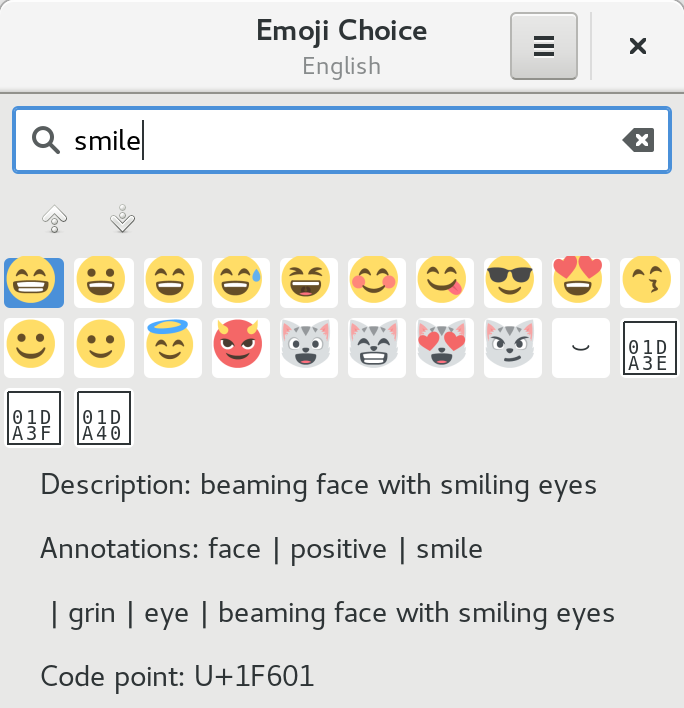
现在 emoji 输入法启用了,按键盘快捷键 Ctrl+Shift+E 搜索 emoji。将出现一个弹出对话框,你可以在其中输入搜索词,例如 “smile” 来查找匹配的符号。

Searching for smile emoji

使用箭头键翻页列表。然后按回车进行选择,字形将替换输入内容。


via: https://fedoramagazine.org/boost-typing-emoji-fedora-28-workstation/

作者:Paul W. Frields 选题:lujun9972 译者:geekpi 校对:wxy

本文由 LCTT 原创编译,Linux中国 荣誉推出

当你使用默认密码创建用户时,你必须强制用户在下一次登录时更改密码。

当你在一个组织中工作时,此选项是强制性的。因为老员工可能知道默认密码,他们可能会也可能不会尝试不当行为。

这是安全投诉之一,所以,确保你必须以正确的方式处理此事而无任何失误。即使是你的团队成员也要一样做。

大多数用户都很懒,除非你强迫他们更改密码,否则他们不会这样做。所以要做这个实践。

出于安全原因,你需要经常更改密码,或者至少每个月更换一次。

确保你使用的是难以猜测的密码(大小写字母,数字和特殊字符的组合)。它至少应该为 10-15 个字符。

我们运行了一个 shell 脚本来在 Linux 服务器中创建一个用户账户,它会自动为用户附加一个密码,密码是实际用户名和少量数字的组合。

我们可以通过使用以下两种方法来实现这一点:

  • passwd 命令
  • chage 命令

建议阅读:

方法 1:使用 passwd 命令

passwd 的意思是“密码”。它用于更新用户的身份验证令牌。passwd 命令/实用程序用于设置、修改或更改用户的密码。

普通的用户只能更改自己的账户,但超级用户可以更改任何账户的密码。

此外,我们还可以使用其他选项,允许用户执行其他活动,例如删除用户密码、锁定或解锁用户账户、设置用户账户的密码过期时间等。

在 Linux 中这可以通过调用 Linux-PAM 和 Libuser API 执行。

在 Linux 中创建用户时,用户详细信息将存储在 /etc/passwd 文件中。passwd 文件将每个用户的详细信息保存为带有七个字段的单行。

此外,在 Linux 系统中创建新用户时,将更新以下四个文件。

  • /etc/passwd: 用户详细信息将在此文件中更新。
  • /etc/shadow: 用户密码信息将在此文件中更新。
  • /etc/group: 新用户的组详细信息将在此文件中更新。
  • /etc/gshadow: 新用户的组密码信息将在此文件中更新。

如何使用 passwd 命令执行此操作

我们可以使用 passwd 命令并添加 -e 选项来执行此操作。

为了测试这一点,让我们创建一个新用户账户,看看它是如何工作的。

# useradd -c "2g Admin - Magesh M" magesh && passwd magesh
Changing password for user magesh.
New password:
Retype new password:
passwd: all authentication tokens updated successfully.

使用户账户的密码失效,那么在下次登录尝试期间,用户将被迫更改密码。

# passwd -e magesh
Expiring password for user magesh.
passwd: Success

当我第一次尝试使用此用户登录系统时,它要求我设置一个新密码。

login as: magesh
[email protected]'s password:
You are required to change your password immediately (root enforced)
WARNING: Your password has expired.
You must change your password now and login again!
Changing password for user magesh.
Changing password for magesh.
(current) UNIX password:
New password:
Retype new password:
passwd: all authentication tokens updated successfully.
Connection to localhost closed.

方法 2:使用 chage 命令

chage 意即“改变时间”。它会更改用户密码过期信息。

chage 命令会改变上次密码更改日期之后需要修改密码的天数。系统使用此信息来确定用户何时必须更改他/她的密码。

它允许用户执行其他活动,例如设置帐户到期日期,到期后设置密码失效,显示帐户过期信息,设置密码更改前的最小和最大天数以及设置到期警告天数。

如何使用 chage 命令执行此操作

让我们在 chage 命令的帮助下,通过添加 -d 选项执行此操作。

为了测试这一点,让我们创建一个新用户帐户,看看它是如何工作的。我们将创建一个名为 thanu 的用户帐户。

# useradd -c "2g Editor - Thanisha M" thanu && passwd thanu
Changing password for user thanu.
New password:
Retype new password:
passwd: all authentication tokens updated successfully.

要实现这一点,请使用 chage 命令将用户的上次密码更改日期设置为 0。

# chage -d 0 thanu

# chage -l thanu
Last password change : Jul 18, 2018
Password expires : never
Password inactive : never
Account expires : never
Minimum number of days between password change : 0
Maximum number of days between password change : 99999
Number of days of warning before password expires : 7

当我第一次尝试使用此用户登录系统时,它要求我设置一个新密码。

login as: thanu
[email protected]'s password:
You are required to change your password immediately (root enforced)
WARNING: Your password has expired.
You must change your password now and login again!
Changing password for user thanu.
Changing password for thanu.
(current) UNIX password:
New password:
Retype new password:
passwd: all authentication tokens updated successfully.
Connection to localhost closed.

via: https://www.2daygeek.com/how-to-force-user-to-change-password-on-next-login-in-linux/

作者:Prakash Subramanian 选题:lujun9972 译者:MjSeven 校对:wxy

本文由 LCTT 原创编译,Linux中国 荣誉推出

众所周知,让我们的 Linux 系统保持最新状态会用到多种包管理器。比如说,在 Ubuntu 中,你无法使用 sudo apt updatesudo apt upgrade 命令升级所有软件。此命令仅升级使用 APT 包管理器安装的应用程序。你有可能使用 cargopipnpmsnapflatpakLinuxbrew 包管理器安装了其他软件。你需要使用相应的包管理器才能使它们全部更新。

再也不用这样了!跟 topgrade 打个招呼,这是一个可以一次性升级系统中所有软件的工具。

你无需运行每个包管理器来更新包。这个 topgrade 工具通过检测已安装的软件包、工具、插件并运行相应的软件包管理器来更新 Linux 中的所有软件,用一条命令解决了这个问题。它是自由而开源的,使用 rust 语言编写。它支持 GNU/Linux 和 Mac OS X.

在 Linux 中使用一个命令升级所有软件

topgrade 存在于 AUR 中。因此,你可以在任何基于 Arch 的系统中使用 Yay 助手程序安装它。

$ yay -S topgrade

在其他 Linux 发行版上,你可以使用 cargo 包管理器安装 topgrade。要安装 cargo 包管理器,请参阅以下链接:

然后,运行以下命令来安装 topgrade

$ cargo install topgrade

安装完成后,运行 topgrade 以升级 Linux 系统中的所有软件。

$ topgrade

一旦调用了 topgrade,它将逐个执行以下任务。如有必要,系统会要求输入 root/sudo 用户密码。

1、 运行系统的包管理器:

  • Arch:运行 yay 或者回退到 pacman
  • CentOS/RHEL:运行 yum upgrade
  • Fedora :运行 dnf upgrade
  • Debian/Ubuntu:运行 apt updateapt dist-upgrade
  • Linux/macOS:运行 brew updatebrew upgrade

2、 检查 Git 是否跟踪了以下路径。如果有,则拉取它们:

  • ~/.emacs.d (无论你使用 Spacemacs 还是自定义配置都应该可用)
  • ~/.zshrc
  • ~/.oh-my-zsh
  • ~/.tmux
  • ~/.config/fish/config.fish
  • 自定义路径

3、 Unix:运行 zplug 更新

4、 Unix:使用 TPM 升级 tmux 插件

5、 运行 cargo install-update

6、 升级 Emacs 包

7、 升级 Vim 包。对以下插件框架均可用:

8、 升级 npm 全局安装的包

9、 升级 Atom 包

10、 升级 Flatpak

11、 升级 snap

12、 Linux:运行 fwupdmgr 显示固件升级。 (仅查看​​。实际不会执行升级)

13、 运行自定义命令。

最后,topgrade 将运行 needrestart 以重新启动所有服务。在 Mac OS X 中,它会升级 App Store 程序。

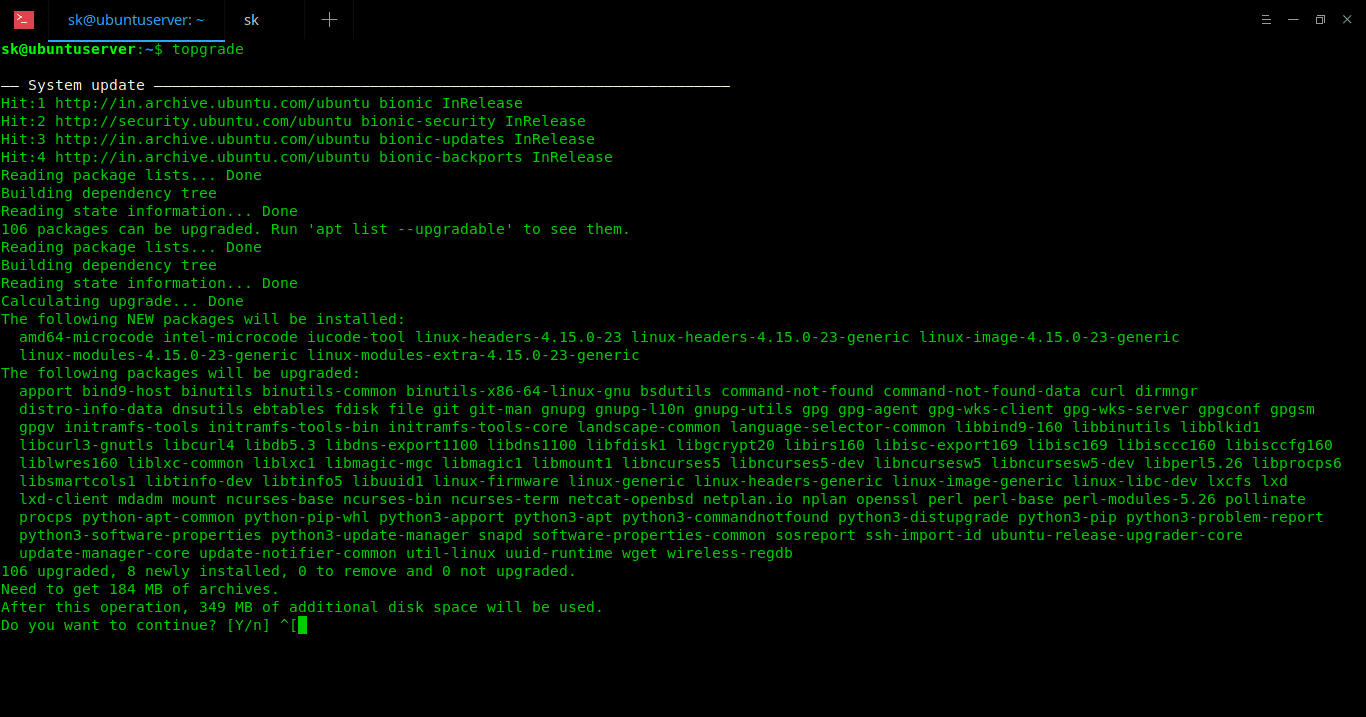
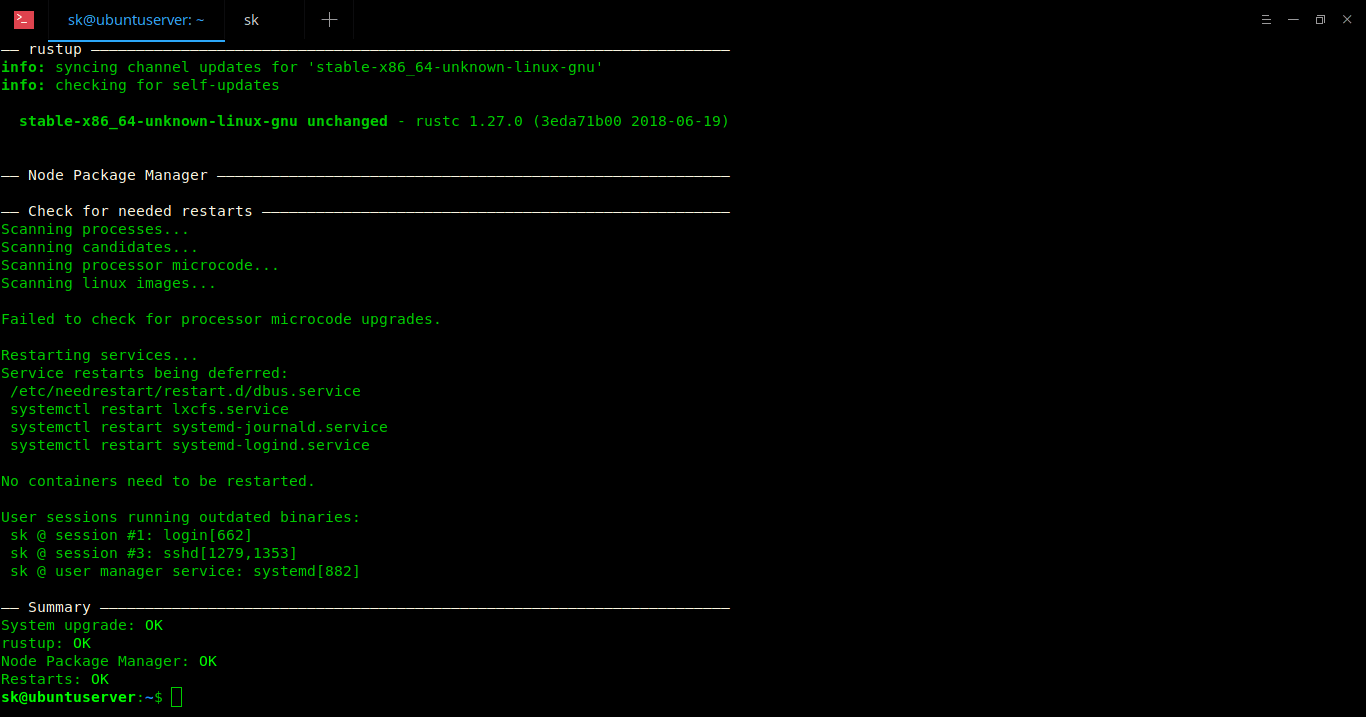
我的 Ubuntu 18.04 LTS 测试环境的示例输出:

好处是如果一个任务失败,它将自动运行下一个任务并完成所有其他后续任务。最后,它将显示摘要,其中包含运行的任务数量,成功的数量和失败的数量等详细信息。

建议阅读:

就个人而言,我喜欢创建一个像 topgrade 程序的想法,并使用一个命令升级使用各种包管理器安装的所有软件。我希望你也觉得它有用。还有更多的好东西。敬请关注!

干杯!


via: https://www.ostechnix.com/how-to-upgrade-everything-using-a-single-command-in-linux/

作者:SK 选题:lujun9972 译者:geekpi 校对:wxy

本文由 LCTT 原创编译,Linux中国 荣誉推出

大多数教育机构仍在使用 Microsoft 字体, 我不清楚其他国家是什么情况。但在泰米尔纳德邦(印度的一个州), Times New RomanArial 字体主要被用于大学和学校的几乎所有文档工作、项目和作业。不仅是教育机构,而且一些小型组织、办公室和商店仍在使用 MS Windows 字体。以防万一,如果你需要在 Ubuntu 桌面版上使用 Microsoft 字体,请按照以下步骤安装。

免责声明: Microsoft 已免费发布其核心字体。 但请注意 Microsoft 字体是禁止使用在其他操作系统中。在任何 Linux 操作系统中安装 MS 字体之前请仔细阅读 EULA 。我们不负责这种任何种类的盗版行为。

(LCTT 译注:本文只做技术探讨,并不代表作者、译者和本站鼓励任何行为。)

在 Ubuntu 18.04 LTS 桌面版上安装 MS 字体

如下所示安装 MS TrueType 字体:

$ sudo apt update
$ sudo apt install ttf-mscorefonts-installer

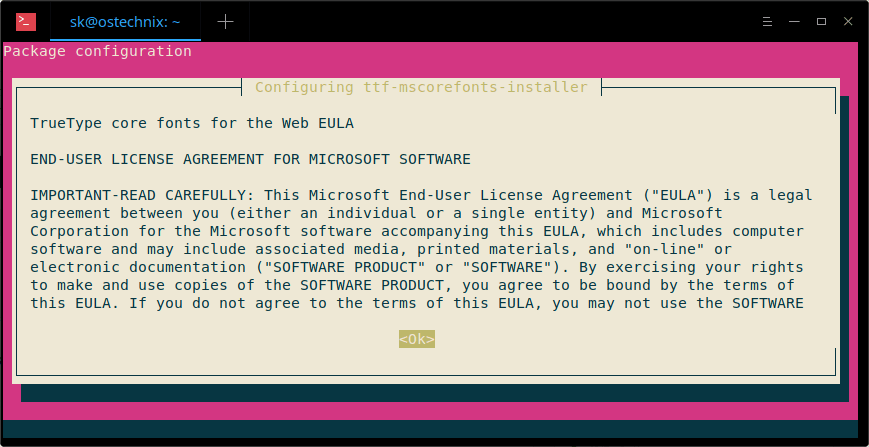
然后将会出现 Microsoft 的最终用户协议向导,点击 OK 以继续。
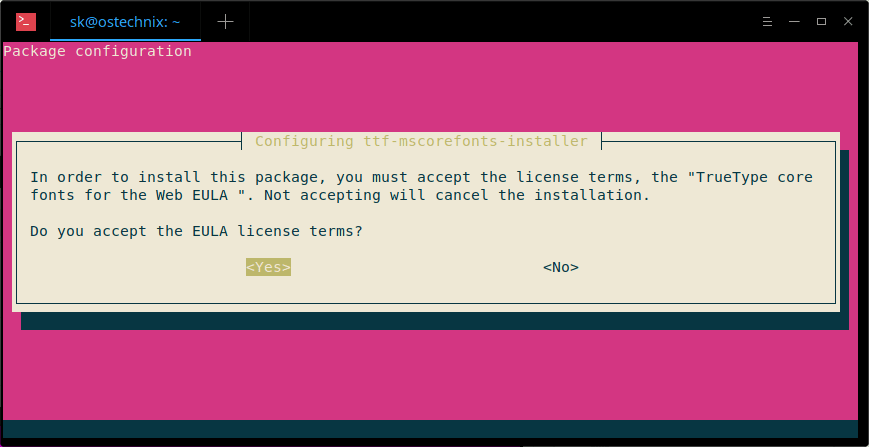
点击 Yes 已接受 Microsoft 的协议:
安装字体之后, 我们需要使用命令行来更新字体缓存:

$ sudo fc-cache -f -v

示例输出:

/usr/share/fonts: caching, new cache contents: 0 fonts, 6 dirs
/usr/share/fonts/X11: caching, new cache contents: 0 fonts, 4 dirs
/usr/share/fonts/X11/Type1: caching, new cache contents: 8 fonts, 0 dirs
/usr/share/fonts/X11/encodings: caching, new cache contents: 0 fonts, 1 dirs
/usr/share/fonts/X11/encodings/large: caching, new cache contents: 0 fonts, 0 dirs
/usr/share/fonts/X11/misc: caching, new cache contents: 89 fonts, 0 dirs
/usr/share/fonts/X11/util: caching, new cache contents: 0 fonts, 0 dirs
/usr/share/fonts/cMap: caching, new cache contents: 0 fonts, 0 dirs
/usr/share/fonts/cmap: caching, new cache contents: 0 fonts, 5 dirs
/usr/share/fonts/cmap/adobe-cns1: caching, new cache contents: 0 fonts, 0 dirs
/usr/share/fonts/cmap/adobe-gb1: caching, new cache contents: 0 fonts, 0 dirs
/usr/share/fonts/cmap/adobe-japan1: caching, new cache contents: 0 fonts, 0 dirs
/usr/share/fonts/cmap/adobe-japan2: caching, new cache contents: 0 fonts, 0 dirs
/usr/share/fonts/cmap/adobe-korea1: caching, new cache contents: 0 fonts, 0 dirs
/usr/share/fonts/opentype: caching, new cache contents: 0 fonts, 2 dirs
/usr/share/fonts/opentype/malayalam: caching, new cache contents: 3 fonts, 0 dirs
/usr/share/fonts/opentype/noto: caching, new cache contents: 24 fonts, 0 dirs
/usr/share/fonts/truetype: caching, new cache contents: 0 fonts, 46 dirs
/usr/share/fonts/truetype/Gargi: caching, new cache contents: 1 fonts, 0 dirs
/usr/share/fonts/truetype/Gubbi: caching, new cache contents: 1 fonts, 0 dirs
/usr/share/fonts/truetype/Nakula: caching, new cache contents: 1 fonts, 0 dirs
/usr/share/fonts/truetype/Navilu: caching, new cache contents: 1 fonts, 0 dirs
/usr/share/fonts/truetype/Sahadeva: caching, new cache contents: 1 fonts, 0 dirs
/usr/share/fonts/truetype/Sarai: caching, new cache contents: 1 fonts, 0 dirs
/usr/share/fonts/truetype/abyssinica: caching, new cache contents: 1 fonts, 0 dirs
/usr/share/fonts/truetype/dejavu: caching, new cache contents: 6 fonts, 0 dirs
/usr/share/fonts/truetype/droid: caching, new cache contents: 1 fonts, 0 dirs
/usr/share/fonts/truetype/fonts-beng-extra: caching, new cache contents: 6 fonts, 0 dirs
/usr/share/fonts/truetype/fonts-deva-extra: caching, new cache contents: 3 fonts, 0 dirs
/usr/share/fonts/truetype/fonts-gujr-extra: caching, new cache contents: 5 fonts, 0 dirs
/usr/share/fonts/truetype/fonts-guru-extra: caching, new cache contents: 1 fonts, 0 dirs
/usr/share/fonts/truetype/fonts-kalapi: caching, new cache contents: 1 fonts, 0 dirs
/usr/share/fonts/truetype/fonts-orya-extra: caching, new cache contents: 1 fonts, 0 dirs
/usr/share/fonts/truetype/fonts-telu-extra: caching, new cache contents: 2 fonts, 0 dirs
/usr/share/fonts/truetype/freefont: caching, new cache contents: 12 fonts, 0 dirs
/usr/share/fonts/truetype/kacst: caching, new cache contents: 15 fonts, 0 dirs
/usr/share/fonts/truetype/kacst-one: caching, new cache contents: 2 fonts, 0 dirs
/usr/share/fonts/truetype/lao: caching, new cache contents: 1 fonts, 0 dirs
/usr/share/fonts/truetype/liberation: caching, new cache contents: 16 fonts, 0 dirs
/usr/share/fonts/truetype/liberation2: caching, new cache contents: 12 fonts, 0 dirs
/usr/share/fonts/truetype/lohit-assamese: caching, new cache contents: 1 fonts, 0 dirs
/usr/share/fonts/truetype/lohit-bengali: caching, new cache contents: 1 fonts, 0 dirs
/usr/share/fonts/truetype/lohit-devanagari: caching, new cache contents: 1 fonts, 0 dirs
/usr/share/fonts/truetype/lohit-gujarati: caching, new cache contents: 1 fonts, 0 dirs
/usr/share/fonts/truetype/lohit-kannada: caching, new cache contents: 1 fonts, 0 dirs
/usr/share/fonts/truetype/lohit-malayalam: caching, new cache contents: 1 fonts, 0 dirs
/usr/share/fonts/truetype/lohit-oriya: caching, new cache contents: 1 fonts, 0 dirs
/usr/share/fonts/truetype/lohit-punjabi: caching, new cache contents: 1 fonts, 0 dirs
/usr/share/fonts/truetype/lohit-tamil: caching, new cache contents: 1 fonts, 0 dirs
/usr/share/fonts/truetype/lohit-tamil-classical: caching, new cache contents: 1 fonts, 0 dirs
/usr/share/fonts/truetype/lohit-telugu: caching, new cache contents: 1 fonts, 0 dirs
/usr/share/fonts/truetype/malayalam: caching, new cache contents: 11 fonts, 0 dirs
/usr/share/fonts/truetype/msttcorefonts: caching, new cache contents: 60 fonts, 0 dirs
/usr/share/fonts/truetype/noto: caching, new cache contents: 2 fonts, 0 dirs
/usr/share/fonts/truetype/openoffice: caching, new cache contents: 1 fonts, 0 dirs
/usr/share/fonts/truetype/padauk: caching, new cache contents: 4 fonts, 0 dirs
/usr/share/fonts/truetype/pagul: caching, new cache contents: 1 fonts, 0 dirs
/usr/share/fonts/truetype/samyak: caching, new cache contents: 1 fonts, 0 dirs
/usr/share/fonts/truetype/samyak-fonts: caching, new cache contents: 3 fonts, 0 dirs
/usr/share/fonts/truetype/sinhala: caching, new cache contents: 1 fonts, 0 dirs
/usr/share/fonts/truetype/tibetan-machine: caching, new cache contents: 1 fonts, 0 dirs
/usr/share/fonts/truetype/tlwg: caching, new cache contents: 58 fonts, 0 dirs
/usr/share/fonts/truetype/ttf-khmeros-core: caching, new cache contents: 2 fonts, 0 dirs
/usr/share/fonts/truetype/ubuntu: caching, new cache contents: 13 fonts, 0 dirs
/usr/share/fonts/type1: caching, new cache contents: 0 fonts, 1 dirs
/usr/share/fonts/type1/gsfonts: caching, new cache contents: 35 fonts, 0 dirs
/usr/local/share/fonts: caching, new cache contents: 0 fonts, 0 dirs
/home/sk/.local/share/fonts: skipping, no such directory
/home/sk/.fonts: skipping, no such directory
/var/cache/fontconfig: cleaning cache directory
/home/sk/.cache/fontconfig: cleaning cache directory
/home/sk/.fontconfig: not cleaning non-existent cache directory
fc-cache: succeeded

在 Linux 和 Windows 双启动的机器上安装 MS 字体

如果你有 Linux 和 Windows 的双启动系统,你可以轻松地从 Windows C 驱动器上安装 MS 字体。 你所要做的就是挂载 Windows 分区(C:/windows)。

我假设你已经在 Linux 中将 C:\Windows 分区挂载在了 /Windowsdrive 目录下。

现在,将字体位置链接到你的 Linux 系统的字体文件夹,如下所示:

ln -s /Windowsdrive/Windows/Fonts /usr/share/fonts/WindowsFonts

链接字体文件之后,使用命令行重新生成 fontconfig 缓存:

fc-cache

或者,将所有的 Windows 字体复制到 /usr/share/fonts 目录下并使用一下命令安装字体:

mkdir /usr/share/fonts/WindowsFonts
cp /Windowsdrive/Windows/Fonts/* /usr/share/fonts/WindowsFonts
chmod 755 /usr/share/fonts/WindowsFonts/*

最后,使用命令行重新生成 fontconfig 缓存:

fc-cache

测试 Windows 字体

安装 MS 字体后打开 LibreOffice 或 GIMP。 现在,你将会看到 Microsoft coretype 字体。
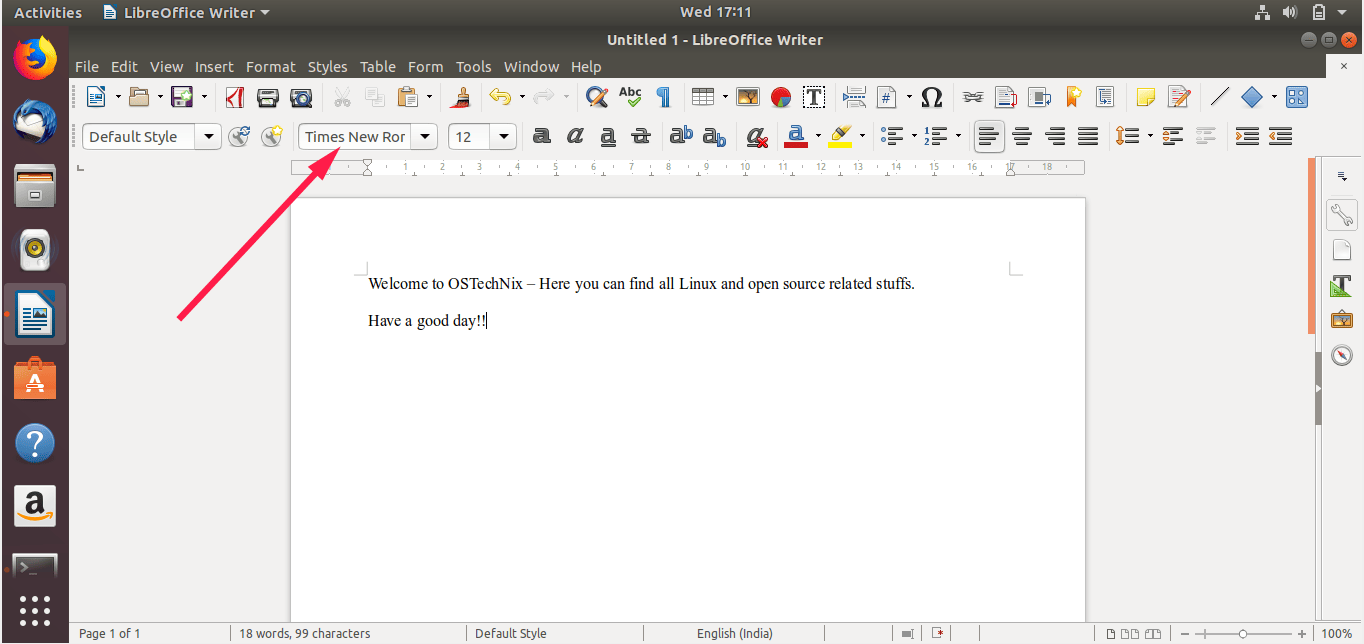
就是这样, 希望这本指南有用。我再次警告你,在其他操作系统中使用 MS 字体是被禁止的。在安装 MS 字体之前请先阅读 Microsoft 许可协议。

如果你觉得我们的指南有用,请在你的社区、专业网络上分享并支持我们。还有更多好东西在等着我们。持续访问!

庆祝吧!!


via: https://www.ostechnix.com/install-microsoft-windows-fonts-ubuntu-16-04/

作者:SK 选题:lujun9972 译者:Auk7F7 校对:wxy

本文由 LCTT 原创编译,Linux中国 荣誉推出

用这里列出的方便的工具来跟踪你的磁盘利用率。

跟踪磁盘利用率信息是系统管理员(和其他人)的日常待办事项列表之一。Linux 有一些内置的使用程序来帮助提供这些信息。

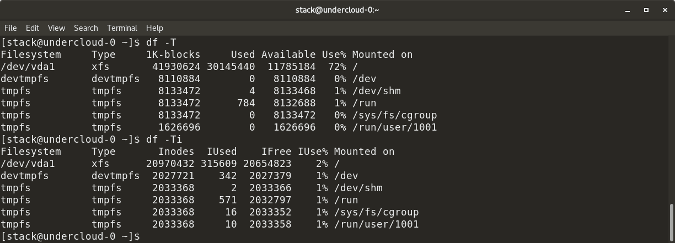
df

df 命令意思是 “disk-free”,显示 Linux 系统上可用和已使用的磁盘空间。

df -h 以人类可读的格式显示磁盘空间。

df -a 显示文件系统的完整磁盘使用情况,即使 Available(可用) 字段为 0。

df -T 显示磁盘使用情况以及每个块的文件系统类型(例如,xfs、ext2、ext3、btrfs 等)。

df -i 显示已使用和未使用的 inode。

du

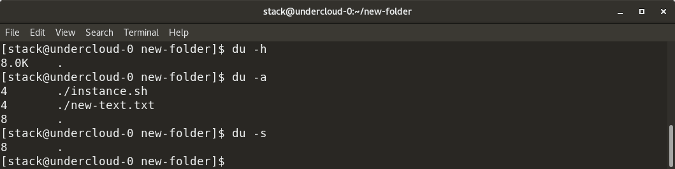
du 显示文件,目录等的磁盘使用情况,默认情况下以 kb 为单位显示。

du -h 以人类可读的方式显示所有目录和子目录的磁盘使用情况。

du -a 显示所有文件的磁盘使用情况。

du -s 提供特定文件或目录使用的总磁盘空间。

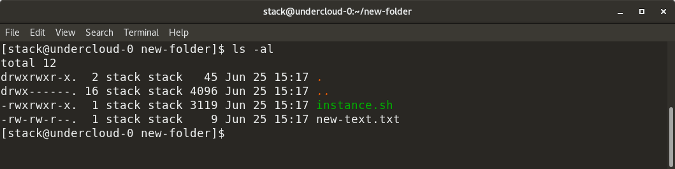
ls -al

ls -al 列出了特定目录的全部内容及大小。

stat

stat <文件/目录>显示文件/目录或文件系统的大小和其他统计信息。

fdisk -l

fdisk -l 显示磁盘大小以及磁盘分区信息。

这些是用于检查 Linux 文件空间的大多数内置实用程序。有许多类似的工具,如 Disks(GUI 工具),Ncdu 等,它们也显示磁盘空间的利用率。你有你最喜欢的工具而它不在这个列表上吗?请在评论中分享。


via: https://opensource.com/article/18/7/how-check-free-disk-space-linux

作者:Archit Modi 选题:lujun9972 译者:MjSeven 校对:wxy

本文由 LCTT 原创编译,Linux中国 荣誉推出