分类 技术 下的文章

如果你想在命令行界面监控网络吞吐量,nload 应用程序是个不错的选择。它是一个实时监控网络流量和带宽使用的控制台应用程序,使用两个图表可视化地展示接收和发送的流量,并提供诸如数据交换总量、最小/最大网络带宽使用量等附加信息。

安装

在 CentOS/RHEL/Red Hat/Fedora Linux 上安装 nload

首先在 CentOS 或者基于 RHEL 的操作系统上启用 EPEL 仓库,然后键入 yum 命令安装 nload:

# yum install nload

在 Debian 或者 Ubuntu Linux 上安装 nload

键入 apt-get 命令

$ sudo apt-get install nload

在 FreeBSD 操作系统上安装 nload

通过 port 安装 nload,键入:

# cd /usr/ports/net/nload/ && make install clean

或者添加包

# pkg install net/nload

在 OpenBSD 操作系统上安装 nload

键入下列命令:

$ sudo pkg_add -i nload

在类 Unix 操作系统上从源代码安装 nload

首先,使用 wget 或者 curl 命令获取源代码:

$ cd /tmp
$ wget http://www.roland-riegel.de/nload/nload-0.7.4.tar.gz

使用 tar 命令解压缩名为 nload-0.7.4.tar.gz 的 tar 包,键入:

$ tar xvf nload-0.7.4.tar.gz

使用 cd 命令进入 nload 源代码所在目录:

$ cd nload*

然后键入 ./configure 为你的操作系统配置安装包:

$ sh ./configure

或者

$ ./configure

运行 configure 命令需要一点时间。完成后,使用 make 命令编译 nload:

$ make

最后,键入 make install 命令以 root 用户身份安装 nload 应用程序和相关文件:

$ sudo make install

或者

# make install

使用

如何使用 nload 显示当前网络使用量呢?

基本语法是:

nload
nload device
nload [options] device1 device2

键入下列命令:

$ nload
$ nload eth0
$ nload em0 em2

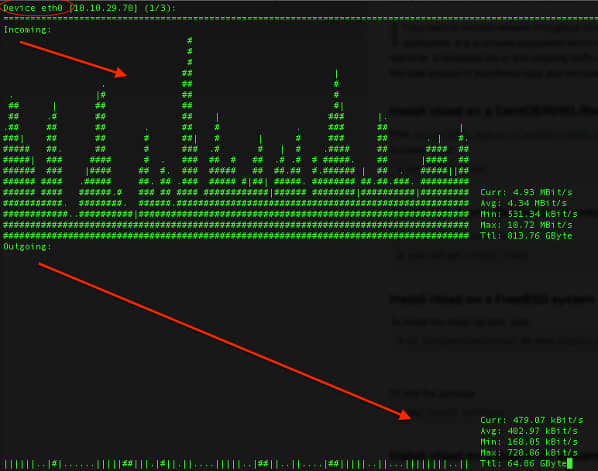
会得到输出:

Fig. 01: nload command in action

图01: 使用 nload 命令

操控 nload 应用程序

nload 命令一旦执行就会开始监控网络设备,你可以使用下列快捷键操控 nload 应用程序。

  1. 你可以按键盘上的 ← → 或者 Enter/Tab 键在设备间切换。
  2. 按 F2 显示选项窗口。
  3. 按 F5 将当前设置保存到用户配置文件。
  4. 按 F6 从配置文件重新加载设置。
  5. 按 q 或者 Ctrl+C 退出 nload。

设置显示刷新间隔

默认每 100 毫秒刷新一次显示数值,下面的例子将时间间隔设置成 500 毫秒:

$ nload -t {interval_number_in_millisec}
$ nload -t 500

输出:

Animated gif 01 - nload command in action

GIF 动画 01 - 使用 nload 命令

设置流量数值显示的单位

语法如下:

$ nload -u h|H|b|B|k|K|m|M|g|G
$ nload -U h|H|b|B|k|K|m|M|g|G
$ nload -u h
$ nload -u G
$ nload -U G

释义:

  • 小写选项 -u: h 意为自动格式化为人类易读的单位,b 意为 Bit/s,k 意为 kBit/s,m 意为 MBit/s,g 意为 GBit/s。大写字母意为使用 Byte 替代 Bit。默认为 k。
  • 大写选项 -U 与小写选项 -u 非常相似,不同之处在于它展示的是数据量,比如 Bit, kByte, GBit 等等。(没有 "/s")。默认值是 M。

结论

我觉得 nload 是一个稳定可靠的应用程序,如果你喜欢 nload,你可能也想试试 Linux 和其他类 Unix 操作系统环境下的 vnstat 与 iftop 工具。


译自: http://www.cyberciti.biz/networking/nload-linux-command-to-monitor-network-traffic-bandwidth-usage/

译者:blueabysm 校对:wxy

本文由 LCTT 原创翻译,Linux中国 荣誉推出

在你的桌面上保留一份打印的备忘录,我保证你会很快学会并成为一个专家。我们已经同时加入pdf和图片(png)两种格式的备忘录。如果你需要我们加入更多命令请保留我们的文章。命令依据它们的用途被分类成13类。我们将命令设计在如我们经常使用的linux shell那样的黑底白字。我们还加入了一些红色来提升注意。:-)

原图大小:2551x3768,点击查看大图

PDF版本在此


via: http://linoxide.com/linux-command/linux-commands-cheat-sheet/

译者:geekpi 校对:wxy

本文由 LCTT 原创翻译,Linux中国 荣誉推出

声音切换器是由Dmitry Kann开发的小程序。这个程序的目的很简单,让你在不同的音频源如喇叭、耳机和HDMI之间点击两下鼠标就能切换。

你可能会说“没什么大不了”。毕竟它不是火箭科学。你可以进入系统设置> 声音设定 并且可以简单地选择你想要的输入输出源。声音切换器没有做新的或者Ubuntu没有提供的功能,它只是简化整个过程。我想这可能是为什么这个没有列在最佳Ubuntu指示器程序中的原因。

你多久需要改变音频源?对于我来说,我不得不在每次从外部监视器的HDMI获取声音时切换音频源。并且我不得不在拔掉HDMI线时重新这么做。这个小程序指示器对于像我这样经常切换音频源又懒的人是很方便的。

在Ubuntu中安装音频切换器:

打开一个终端并且使用下面的命令在Ubuntu中安装音频切换器:

sudo apt-add-repository ppa:yktooo/ppa
sudo apt-get update
sudo apt-get install indicator-sound-switcher

重要提示:

音频切换器不会自动启动。为了自动启动,你要把它加到启动程序中。打开启动程序并点击添加。这里,给它一个名字,比如就称声音切换器,并是在命令部分使用 “indicator-sound-switcher”(没有引号)。如果你在加入启动程序遇到问题时请告诉我。

你认为音频切换器怎么样?像这样的小程序对用户有好处么?让我们知道你的看法。


via: http://itsfoss.com/sound-switcher-indicator-ubuntu/

译者:geekpi 校对:wxy

本文由 LCTT 原创翻译,Linux中国 荣誉推出

Linux其乐无穷!哈哈。不相信。记住我的话,在文章结尾时你就会相信Linux确实好玩了。

20 Linux Funny Commands

1. 命令:sl (蒸汽机车)

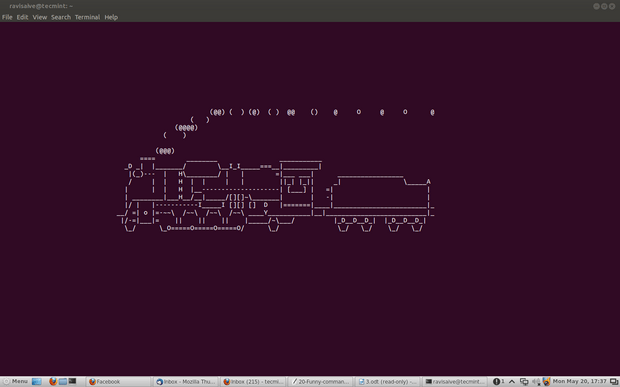
你可能了解 ‘ls’ 命令,并经常使用它来查看文件夹的内容。但是,有些时候你可能会拼写成 ‘sl’ ,这时我们应该如何获得一些乐趣而不是看见“command not found”呢?

安装 sl

root@tecmint:~# apt-get install sl      (In Debian like OS)
root@tecmint:~# yum -y install sl       (In Red Hat like OS)

输出

root@tecmint:~# sl

sl command

当你敲入的是‘LS‘而不是’ls‘时,这个命令也会运行。

2. 命令:telnet

非也!非也!!这可不像它平常那样复杂。你可能很熟悉telnet。Telnet 是一个文本化的双向网络协议。这里不需要安装什么东西。你需要的就是一个Linux系统和一个连通的网络。

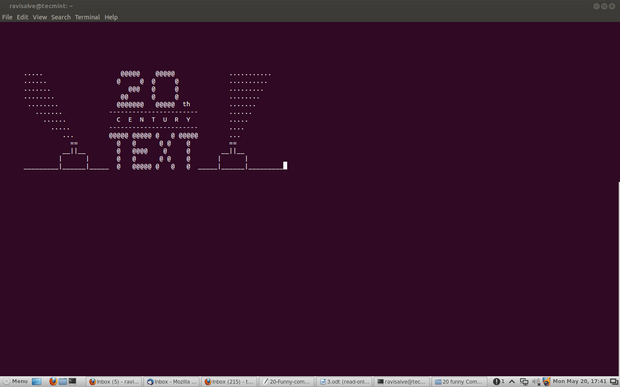
root@tecmint:~# telnet towel.blinkenlights.nl

telnet command

3. 命令:fortune

试试你未知的运气,终端里有时也有好玩的。

安装 fortune

root@tecmint:~# apt-get install fortune     (for aptitude based system)
root@tecmint:~# yum install fortune         (for yum based system)

root@tecmint:~# fortune

You're not my type.  For that matter, you're not even my species!!!
Future looks spotty.  You will spill soup in late evening.
You worry too much about your job.  Stop it.  You are not paid enough to worry.
Your love life will be... interesting.

4. 命令:rev(翻转)

它会把传递给它的的每个字符串都反过来,是不是很好玩。

root@tecmint:~# rev

123abc 
cba321 

xuniL eb ot nrob
born to be Linux

5. 命令:factor

该谈点儿关于Mathematics的了,这个命令输出给定数字的所有因子。

root@tecmint:~# factor

5 
5: 5 

12 
12: 2 2 3 

1001 
1001: 7 11 13 

5442134 
5442134: 2 2721067

6.命令:script

好的,这不是什么命令,而是一个脚本,一个很有趣的脚本。

root@tecmint:~# for i in {1..12}; do for j in $(seq 1 $i); do echo -ne $i x $j=$((i*j))\\t;done; echo;done 

1 x 1=1 
2 x 1=2 2 x 2=4 
3 x 1=3 3 x 2=6 3 x 3=9 
4 x 1=4 4 x 2=8 4 x 3=12    4 x 4=16    
5 x 1=5 5 x 2=10    5 x 3=15    5 x 4=20    5 x 5=25    
6 x 1=6 6 x 2=12    6 x 3=18    6 x 4=24    6 x 5=30    6 x 6=36    
7 x 1=7 7 x 2=14    7 x 3=21    7 x 4=28    7 x 5=35    7 x 6=42    7 x 7=49    
8 x 1=8 8 x 2=16    8 x 3=24    8 x 4=32    8 x 5=40    8 x 6=48    8 x 7=56    8 x 8=64    
9 x 1=9 9 x 2=18    9 x 3=27    9 x 4=36    9 x 5=45    9 x 6=54    9 x 7=63    9 x 8=72    9 x 9=81    
10 x 1=10   10 x 2=20   10 x 3=30   10 x 4=40   10 x 5=50   10 x 6=60   10 x 7=70   10 x 8=80   10 x 9=90   10 x 10=100 
11 x 1=11   11 x 2=22   11 x 3=33   11 x 4=44   11 x 5=55   11 x 6=66   11 x 7=77   11 x 8=88   11 x 9=99   11 x 10=110 11 x 11=121 
12 x 1=12   12 x 2=24   12 x 3=36   12 x 4=48   12 x 5=60   12 x 6=72   12 x 7=84   12 x 8=96   12 x 9=108  12 x 10=120 12 x 11=132 12 x 12=144

7.命令:Cowsay

一个在终端用ASCII码组成的小牛,这个小牛会说出你想要它说的话。

安装Cowsay

root@tecmint:~# apt-get install cowsay      (for Debian based OS)
root@tecmint:~# yum install cowsay      (for Red Hat based OS)

输出

root@tecmint:~# cowsay I Love nix 

 ____________
< I Love nix >
 ------------
        \   ^__^
         \  (oo)\_______
            (__)\       )\/\
                ||----w |
                ||     ||

如果用管道将‘fortune command’命令重定向到cowsay会怎样呢?

root@tecmint:~# fortune | cowsay

 _________________________________________
 / Q: How many Oregonians does it take to  \
 | screw in a light bulb? A: Three. One to |
 | screw in the light bulb and two to fend |
 | off all those                           |
 |                                         |
 | Californians trying to share the        |
 \ experience.                             /
  -----------------------------------------
         \   ^__^
          \  (oo)\_______
             (__)\       )\/\
                 ||----w |
                 ||     ||

提示:‘|’是管道命令符。通常它是将一个命令的输出作为下一个命令的输入。在上面的例子中‘fortune’的输出作为‘cowsay’命令的输出。管道命令会经常用在脚本和程序编写中。

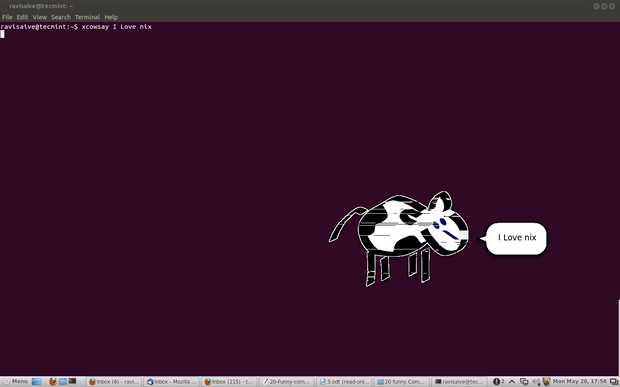
xcowsay是一个图形界面程序。它与cowsay类似只是以一种图形的方式来表达,可以说是X版本的cowsay。

apt-get insatll xcowsay
yum install xcowsay

输出

root@tecmint:~# xcowsay I Love nix

xcowsay command

cowthink是另一个命令。运行“cowthink Linux is sooo funny ”看看它与cowsay的不同吧。

apt-get insatll cowthink
yum install cowthink

输出

root@tecmint:~# cowthink ....Linux is sooo funny
 _________________________
( ....Linux is sooo funny )
 -------------------------
        o   ^__^
         o  (oo)\_______
            (__)\       )\/\
                ||----w |
                ||     ||

8. 命令:yes

yes 是一个非常有趣又有用的命令,尤其对于脚本编写和系统管理员来说,它可以自动地生成预先定义的响应或者将其传到终端。

root@tecmint:~# yes I Love Linux

I Love Linux
I Love Linux
I Love Linux
I Love Linux
I Love Linux
I Love Linux
I Love Linux
I Love Linux
I Love Linux
I Love Linux
I Love Linux
I Love Linux

提示: (直到你按下ctrl+c才停止)

9. 命令: toilet

什么?你在开玩笑吗! 当然没有,但肯定的是这个命令的名字太搞了,我也不知道这个命令的名字从何而来。

安装toilet

root@tecmint:~# apt-get install toilet 
root@tecmint:~# yum install toilet

输出

root@tecmint:~# toilet tecmint 

mmmmmmm                        "             m                               
   #     mmm    mmm   mmmmm  mmm    m mm   mm#mm          mmm    mmm   mmmmm 
   #    #"  #  #"  "  # # #    #    #"  #    #           #"  "  #" "#  # # # 
   #    #""""  #      # # #    #    #   #    #           #      #   #  # # # 
   #    "#mm"  "#mm"  # # #  mm#mm  #   #    "mm    #    "#mm"  "#m#"  # # #

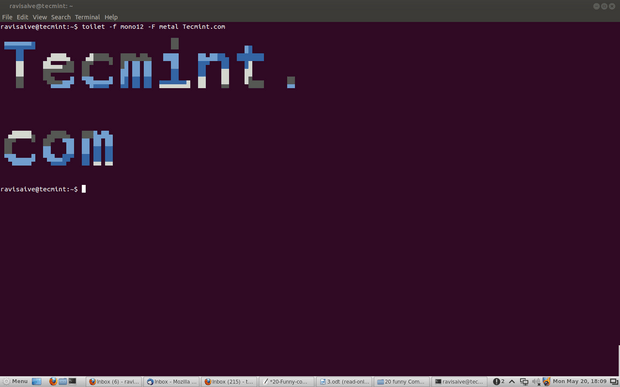
这个命令甚至提供了一些颜色和字体格式。

root@tecmint:~# toilet -f mono12 -F metal Tecmint.com

toilet command

提示:Figlet 是另外一个与toilet产生的效果类似的命令。

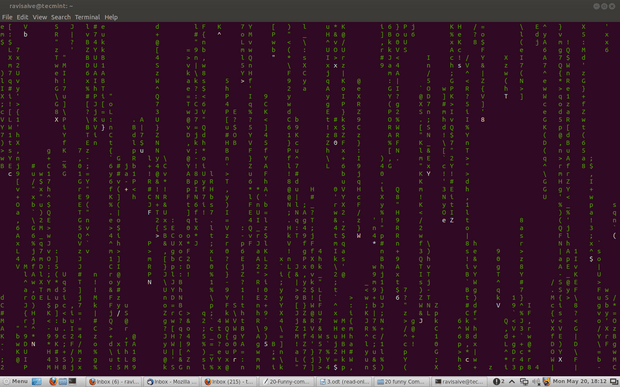
10. 命令:cmatrix

你可能看多好莱坞的电影‘黑客帝国’并陶醉于被赋予Neo的能看到在矩阵中任何事物的能力,或者你会想到一幅类似于‘Hacker’的桌面的生动画面。

安装 cmatrix

root@tecmint:~# apt-get install cmatrix
root@tecmint:~# yum install cmatrix

输出

root@tecmint:~# cmatrix

cmatrix command

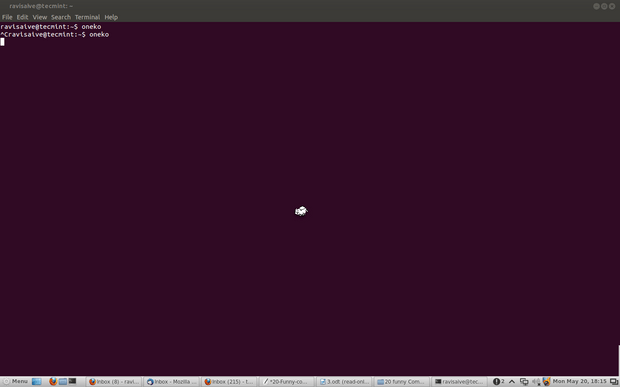
11. 命令: oneko

可能你坚信Linux的鼠标指针永远是同样的黑色或白色一点儿也不生动,那你就错了。“oneko”是一个会让一个“Jerry”你的鼠标指针附着到你鼠标上的一个软件包。

安装 oneko

root@tecmint:~# apt-get install oneko
root@tecmint:~# yum install oneko

输出

root@tecmint:~# oneko

oneko command

提示:关闭运行着oneko的终端时,Jerry也会随之消失,重新启动终端时也不会再出项。你可以将这个程序添加到启动选项中然后继续使用它。

12. Fork炸弹

这是一段非常欠抽的代码。运行这个命令的后果自己负责。这个命令其实是一个fork炸弹,它会以指数级的自乘,直到所有的系统资源都被利用了或者系统挂起(想要见识这个命令的威力你可以试一次这个命令,但是后果自负,记得在运行它之前关掉并保存其它所有程序和文件)。

root@tecmint:~# :(){ :|:& }:

13. 命令:while

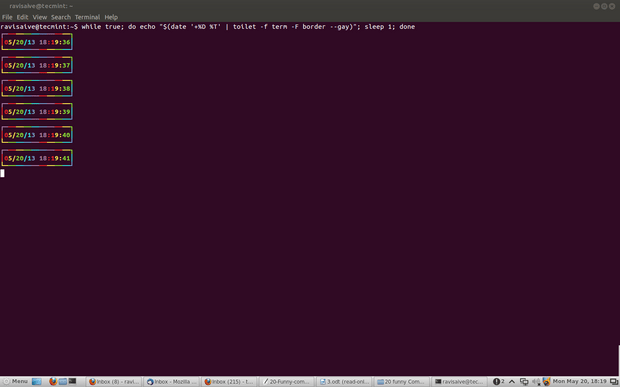
下面的”while“命令是一个脚本,这个脚本可以为你提供彩色的日期和文件直到你按下中断键(ctrl+c)。复制粘贴这个命令到你的终端。

root@tecmint:~# while true; do echo "$(date '+%D %T' | toilet -f term -F border --gay)"; sleep 1; done

Linux while command

提示:以上脚本通过下面的修改也会产生类似的输出但是还是有点不同的,在你的终端试试吧。

root@tecmint:~# while true; do clear; echo "$(date '+%D %T' | toilet -f term -F border --gay)"; sleep 1; done

14. 命令: espeak

将你的多媒体音箱的音量调到最大,然后在将这个命令复制到你的终端,来看看你听到上帝的声音时的反应吧。

安装 espeak

root@tecmint:~# apt-get install espeak
root@tecmint:~# yum install espeak

输出

root@tecmint:~# espeak "Tecmint is a very good website dedicated to Foss Community"

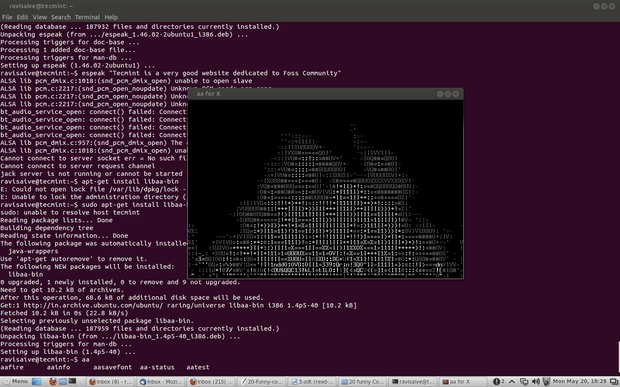
15. 命令: aafire

在你的终端放一把火如何。把这个“aafire”敲到你的终端,不需要什么引号看看这神奇的一幕吧。按下任意键中指该程序。

安装 aafire

root@tecmint:~# apt-get install libaa-bin

输出

root@tecmint:~# aafire

16. 命令: bb

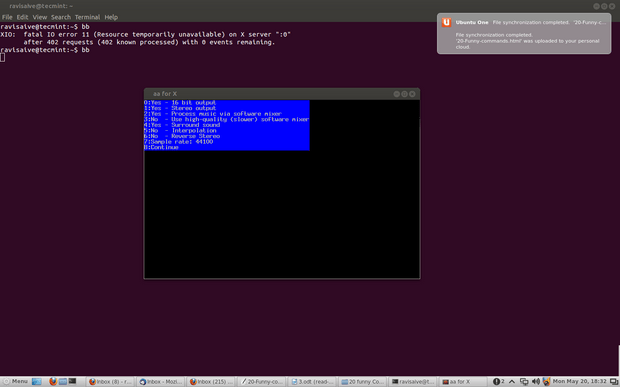
首先安装“apt-get install bb”,然后敲入“bb”看看会发生什么吧。

root@tecmint:~# bb

bb command

17. 命令: url

如果在你的朋友面前用命令行来改变你的 twitter status 会不会很酷呢。用你的用户名密码你想要的状态分别替换username, password 和“your status message“就可以了。

root@tecmint:~# url -u YourUsername:YourPassword -d status="Your status message" http://twitter.com/statuses/update.xml

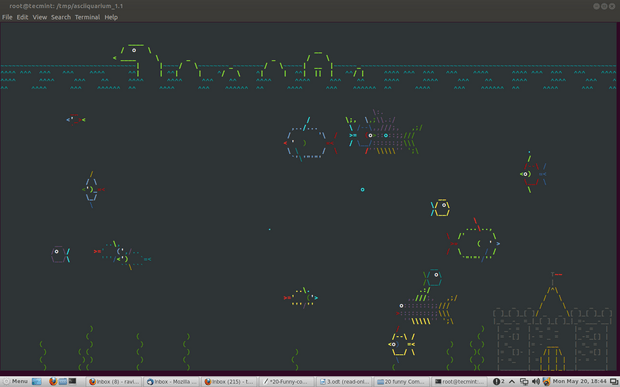
18. ASCIIquarium

想要在终端弄一个水族馆该,怎么办?

root@tecmint:~# apt-get install libcurses-perl
root@tecmint:~# cd /tmp 
root@tecmint:~# wget http://search.cpan.org/CPAN/authors/id/K/KB/KBAUCOM/Term-Animation-2.4.tar.gz
root@tecmint:~# tar -zxvf Term-Animation-2.4.tar.gz
root@tecmint:~# cd Term-Animation-2.4/
root@tecmint:~# perl Makefile.PL &&  make &&   make test
root@tecmint:~# make install

安装 ASCIIquarium

下载并安装ASCIIquarium

root@tecmint:~# cd /tmp
root@tecmint:~# wget http://www.robobunny.com/projects/asciiquarium/asciiquarium.tar.gz
root@tecmint:~# tar -zxvf asciiquarium.tar.gz
root@tecmint:~# cd asciiquarium_1.1/
root@tecmint:~# cp asciiquarium /usr/local/bin
root@tecmint:~# chmod 0755 /usr/local/bin/asciiquarium

最后在终端运行“asciiquarium”或者“/usr/local/bin/asciiquarium”,记得不要加引号,神奇的一幕将在你眼前展现。

root@tecmint:~# asciiquarium

aquarium command

19. 命令: funny manpages

首先安装“apt-get install funny-manpages”然后运行下面命令的man手册。其中一些

baby
celibacy
condom
date
echo
flame
flog
gong
grope, egrope, fgrope 
party 
rescrog 
rm
rtfm
tm
uubp
woman (undocumented)
xkill 
xlart 
sex 
strfry

root@tecmint:~# man baby

20. Linux Tweaks

该到了做一些优化的时候了

root@tecmint:~# world
bash: world: not found
root@tecmint:~# touch girls\ boo** 
touch: cannot touch `girls boo**`: Permission denied
root@tecmint:~# nice man woman
No manual entry for woman
root@tecmint:~# ^How did the sex change operation go?^ 
bash: :s^How did the sex change operation go?^ : substitution failed
root@tecmint:~# %blow 
bash: fg: %blow: no such job
root@tecmint:~# make love 
make: *** No rule to make target `love`.  Stop.
$ [ whereis my brain?
sh: 2: [: missing ]
% man: why did you get a divorce? 
man:: Too many arguments.
% !:say, what is saccharine? 
Bad substitute.
server@localhost:/srv$ \(- 
bash: (-: command not found

Linux总是sexy:who | grep -i blonde | date; cd ~; unzip; touch; strip; finger; mount; gasp; yes; uptime; umount; sleep(如果你知道我的意思,汗!)

还有一些其它的命令,只是这些命令并不能在所有的系统上运行,所以本文没有涉及到。比如说dog , filter, banner

使用愉快,你可以稍后再对我说谢谢:)您的评价是我们前进的不竭动力。告诉我们你最喜欢的命令。继续关注,不久我会有另一篇值得阅读的文章。


via: http://www.tecmint.com/20-funny-commands-of-linux-or-linux-is-fun-in-terminal/

译者:Linchenguang 校对:wxy

本文由 LCTT 原创翻译,Linux中国 荣誉推出

系统资源监控

为使系统良好运转,Linux系统管理员经常需要监测cpu,内存,磁盘,网络等系统信息。Linux上已有iotop,top,free,htop,sar等丰富的常规工具来实现监测功能。今天让我们走进Collectl来了解这个集测试/监控/分析系统性能为一体的Linux工具。

Collectl作为一个轻量级的监控工具,在同类工具中是功能最全的。用户可监测不同的复杂系统矩阵值,并可保留数据以做之后的分析。不同于其他只用来监测特定系统参数的工具,Collectl可以同时监测不同的变量,并以合适的方式记录它们。

摘自Collectl官网 ...

不同于或聚焦于一小组统计数据、采用唯一输出方式,或采用迭代、作为守护进程运行的大部分监测工具,collectl可以同时全部实现。用户可选择各种子系统中的任一系统来监测包括内存,CPU,磁盘,索引节点,无线带宽,lustre,内存,网络,网络文件系统,进程,二次型,slabs,套接口及TCP等信息。

深入学习前让我们先看以下命令。

$ collectl
waiting for 1 second sample...
#<--------CPU--------><----------Disks-----------><----------Network---------->
#cpu sys inter  ctxsw KBRead  Reads KBWrit Writes   KBIn  PktIn  KBOut  PktOut 
   0   0   864   1772      0      0      0      0      0      1      0       0 
   5   2  1338   2734      0      0      8      2      0      0      0       1 
   1   0  1222   2647      0      0     92      3      0      2      0       1 
   1   0   763   1722      0      0     80      3      0      1      0       2

CPU使用率,磁盘输入输出和网络活动以每秒为单位来加载。对可以理解这些数据的人来说这些信息很容易读懂。这项列表在给定的时间间隔里会持续增加,并可直接形成一项文件跟踪日志。collectl工具提供了各种命令来对这些数据进行记录,查找及做其他处理。

安装collectl工具

对Ubuntu/Debian用户来说Collectl是默认资源,所以使用apt命令便可获取。

$ sudo apt-get install collectl

Fedora/CentOS用户使用yum命令便可获取。

$ yum install collectl

使用

必要的了解 - Collectl子系统

子系统是可检测到的不同系统资源类型。像CPU,内存,带宽等等都可构成一个子系统。只运行collectl命令将以批处理模式输出CPU,磁盘和网络子系统信息,我们在上文已看到相关内容。

从操作说明可以看到,Collectl可以识别以下子系统。

总计子系统

b - buddy info (内存片段)
c - CPU
d - Disk
f - NFS V3 Data
i - Inode and File System
j - Interrupts
l - Lustre
m - Memory
n - Networks
s - Sockets
t - TCP
x - Interconnect
y - Slabs (system object caches)

细节子系统

这是一系列的详细信息,大部分情况下都会由相应的总计数据衍生出来。目前“环境变量”和“进程”2类没有相应的总计数据。如果有3个磁盘,选择-sd,将只会看到3个磁盘组合出的单一信息。如果选择-sD,将会分别显示各磁盘信息。

C - CPU
D - Disk
E - Environmental data (fan, power, temp),  via ipmitool
F - NFS Data
J - Interrupts
L - Lustre OST detail OR client Filesystem detail
M - Memory node data, which is also known as numa data
N - Networks
T - 65 TCP counters only available in plot format
X - Interconnect
Y - Slabs (system object caches)
Z - Processes

使用“-s”来监测特定的子系统并向其添加子系统的识别项。现在让我们举几个例子。

1. 监测cpu使用率

用“-sc”实现CPU总使用率的监测

$ collectl -sc
waiting for 1 second sample...
#<--------CPU-------->
#cpu sys inter  ctxsw 
   3   0  1800   3729 
   3   0  1767   3599

使用“-C”观察各个单独的CPU使用情况。结果将会输出多行,分别对应一个CPU。

   $ collectl -sC
waiting for 1 second sample...

# SINGLE CPU STATISTICS

#   Cpu  User Nice  Sys Wait IRQ  Soft Steal Idle
      0     3    0    0    0    0    0     0   96
      1     3    0    0    0    0    0     0   96
      2     2    0    0    0    0    0     0   97
      3     1    0    0    0    0    0     0   98
      0     2    0    0    0    0    0     0   97
      1     2    0    2    0    0    0     0   95
      2     1    0    0    0    0    0     0   98
      3     4    0    1    0    0    0     0   95

如果需要,可以同时使用C和c来获取单项CPU监测数据和汇总数据。

2. 内存监测

使用m子系统查看内存。

$ collectl -sm
waiting for 1 second sample...
#<-----------Memory----------->
#Free Buff Cach Inac Slab  Map 
   2G 220M   1G   1G 210M   3G 
   2G 220M   1G   1G 210M   3G 
   2G 220M   1G   1G 210M   3G

不难解释。 M用来查看更多内存的详细信息。

$ collectl -sM
waiting for 1 second sample...

# MEMORY STATISTICS 

# Node    Total     Used     Free     Slab   Mapped     Anon   Locked    Inact Hit%
     0    7975M    5939M    2036M  215720K  372184K        0    6652K    1434M    0
     0    7975M    5939M    2036M  215720K  372072K        0    6652K    1433M    0

这类似于免费报告吗?

3. 查看磁盘使用情况

d和D可以查看磁盘使用的概况和详细情况。

$ collectl -sd
waiting for 1 second sample...
#<----------Disks----------->
#KBRead  Reads KBWrit Writes 
      4      1    136     24 
      0      0     80     13

$ collectl -sD
waiting for 1 second sample...

# DISK STATISTICS (/sec)
#          <---------reads---------><---------writes---------><--------averages--------> Pct
#Name       KBytes Merged  IOs Size  KBytes Merged  IOs Size  RWSize  QLen  Wait SvcTim Util
sda              0      0    0    0       0      0    0    0       0     0     0      0    0
sda              1      0    2    1      17      1    5    3       2     2     6      2    1
sda              0      0    0    0      92     11    5   18      18     1    12     12    5

“--verbose”命令可以用来查看附加信息。和D命令不同,它将概况扩展,包含了更多信息。

$ collectl -sd --verbose

4. 同时报告多系统情况

如果想要同时得到CPU,内存和磁盘报告,那么同时使用子命令组合来实现。

$ collectl -scmd
waiting for 1 second sample...
#<--------CPU--------><-----------Memory-----------><----------Disks----------->
#cpu sys inter  ctxsw Free Buff Cach Inac Slab  Map KBRead  Reads KBWrit Writes 
   4   0  2187   4334   1G 221M   1G   1G 210M   3G      0      0      0      0 
   3   0  1896   4065   1G 221M   1G   1G 210M   3G      0      0     20      5

5. 显示统计时间

若要将每行的监测信息和时间一同显示,使用T选项。通过在“-o”参数来指定。

$ collectl -scmd -oT
waiting for 1 second sample...
#         <--------CPU--------><-----------Memory-----------><----------Disks----------->
#Time     cpu sys inter  ctxsw Free Buff Cach Inac Slab  Map KBRead  Reads KBWrit Writes 
12:03:05    3   0  1961   4013   1G 225M   1G   1G 212M   3G      0      0      0      0 
12:03:06    3   0  1884   3810   1G 225M   1G   1G 212M   3G      0      0      0      0 
12:03:07    3   0  2011   4060   1G 225M   1G   1G 212M   3G      0      0      0      0

使用“-oTm”可将时间换成毫秒显示。

6. 改变样本计数

collectl报告的每行都是一份快照或样本,它通常设定定期间隔如1秒来取样。i可用来设置时间间隔,c用来设置样本计数。

$ collectl -c1 -sm
waiting for 1 second sample...
#<-----------Memory----------->
#Free Buff Cach Inac Slab  Map 
   1G 261M   1G   1G 228M   3G

使用i命令可改变更新时间间隔。

$ collectl -sm -i2
waiting for 2 second sample...
#<-----------Memory----------->
#Free Buff Cach Inac Slab  Map 
   1G 261M   1G   1G 229M   3G

上面的命令设定每2秒收集一次内存信息。

7. 像iotop一样使用collectl

top命令将collectl像iostat/top工具一样进行智能统计。列表会持续更新,且可以使用不同字段实现排序。

$ collectl --top iokb

输出如下

# TOP PROCESSES sorted by iokb (counters are /sec) 09:44:57
# PID  User     PR  PPID THRD S   VSZ   RSS CP  SysT  UsrT Pct  AccuTime  RKB  WKB MajF MinF Command
 3104  enlighte 20  2683    3 S  938M   33M  0  0.00  0.00   0  00:09.16    0    4    0    0 /usr/bin/ktorrent 
    1  root     20     0    0 S   26M    3M  2  0.00  0.00   0  00:01.30    0    0    0    0 /sbin/init 
    2  root     20     0    0 S     0     0  3  0.00  0.00   0  00:00.00    0    0    0    0 kthreadd 
    3  root     20     2    0 S     0     0  0  0.00  0.00   0  00:00.02    0    0    0    0 ksoftirqd/0 
    4  root     20     2    0 S     0     0  0  0.00  0.00   0  00:00.00    0    0    0    0 kworker/0:0 
    5  root      0     2    0 S     0     0  0  0.00  0.00   0  00:00.00    0    0    0    0 kworker/0:0H 
    7  root     RT     2    0 S     0     0  0  0.00  0.00   0  00:00.08    0    0    0    0 migration/0 
    8  root     20     2    0 S     0     0  2  0.00  0.00   0  00:00.00    0    0    0    0 rcu_bh 
    9  root     20     2    0 S     0     0  0  0.00  0.00   0  00:00.00    0    0    0    0 rcuob/0

上面的输出很像top命令,并且它以磁盘数量降序排列进程。

若只想显示上面的5项进程,可用以下命令实现

$ collectl --top iokb,5

若想学习上面的列表里哪些字段可以排序,使用如下命令

$ collectl --showtopopts

下面是应用于进程或数据的最高排序类型列表。某些情况下你可能会使用某一字段进行排序,但它并非显示的一部分。

TOP PROCESS SORT FIELDS
进程排序字段

Memory
  vsz    virtual memory
  rss    resident (physical) memory

Time
  syst   system time
  usrt   user time
  time   total time
  accum  accumulated time

I/O
  rkb    KB read
  wkb    KB written
  iokb   total I/O KB

  rkbc   KB read from pagecache
  wkbc   KB written to pagecache
  iokbc  total pagecacge I/O
  ioall  total I/O KB (iokb+iokbc)

  rsys   read system calls
  wsys   write system calls
  iosys  total system calls

  iocncl Cancelled write bytes

Page Faults
  majf   major page faults
  minf   minor page faults
  flt    total page faults

Context Switches
  vctx   volunary context switches
  nctx   non-voluntary context switches

Miscellaneous (best when used with --procfilt)
  cpu    cpu number
  pid    process pid
  thread total process threads (not counting main)

TOP SLAB SORT FIELDS

  numobj    total number of slab objects
  actobj    active slab objects
  objsize   sizes of slab objects
  numslab   number of slabs
  objslab   number of objects in a slab
  totsize   total memory sizes taken by slabs
  totchg    change in memory sizes
  totpct    percent change in memory sizes
  name      slab names

8. 像top一样使用collectl

为使collectl像top,我们只需以CPU使用率排序输出进程。

$ collectl --top

输出如下

# TOP PROCESSES sorted by time (counters are /sec) 14:08:46
# PID  User     PR  PPID THRD S   VSZ   RSS CP  SysT  UsrT Pct  AccuTime  RKB  WKB MajF MinF Command
 9471  enlighte 20  9102    0 R   63M   22M  3  0.03  0.10  13  00:00.81    0    0    0    3 /usr/bin/perl 
 3076  enlighte 20  2683    2 S  521M   40M  2  0.00  0.03   3  00:55.14    0    0    0    2 /usr/bin/yakuake 
 3877  enlighte 20  3356   41 S    1G  218M  1  0.00  0.03   3  10:10.50    0    0    0    0 /opt/google/chrome/chrome 
 4625  enlighte 20  2895   36 S    1G  241M  2  0.00  0.02   2  08:24.39    0    0    0   12 /usr/lib/firefox/firefox 
 5638  enlighte 20  3356    3 S    1G  265M  1  0.00  0.02   2  09:55.04    0    0    0    2 /opt/google/chrome/chrome 
 1186  root     20  1152    4 S  502M   76M  0  0.00  0.01   1  03:02.96    0    0    0    0 /usr/bin/X 
 1334  www-data 20  1329    0 S   87M    1M  2  0.00  0.01   1  00:00.85    0    0    0    0 nginx:

上面的命令也可用于显示子系统信息。

$ collectl --top -scm

9. 像ps一样列出进程

为像ps命令一样列出所有进程且没有后续更新,用“c”命令让其计数至1. $ collectl -c1 -sZ -i:1

上面的命令将会列出类似“ps -e”命令的所有进程。“procfilt”用于从所有进程中过滤出特定的进程信息。“procopts”用于指定另一组微调进程列表显示的命令。

10. 像vmstat一样使用collectl

Collectl有内置命令来完成像vmstat一样的功能。

$ collectl --vmstat
waiting for 1 second sample...
#procs ---------------memory (KB)--------------- --swaps-- -----io---- --system-- ----cpu-----
# r  b   swpd   free   buff  cache  inact active   si   so    bi    bo   in    cs us sy  id wa
  1  0      0  1733M   242M  1922M  1137M   710M    0    0     0   108 1982  3918  2  0  95  1
  1  0      0  1733M   242M  1922M  1137M   710M    0    0     0     0 1906  3886  1  0  98  0
  1  0      0  1733M   242M  1922M  1137M   710M    0    0     0     0 1739  3480  3  0  96  0

11. 子系统的详细信息

下面的命令以一秒为间隔,统计5次CPU信息并和时间一起显示出详细信息(冗长)。

$ collectl -sc -c5 -i1 --verbose -oT
waiting for 1 second sample...

# CPU SUMMARY (INTR, CTXSW & PROC /sec)
#Time      User  Nice   Sys  Wait   IRQ  Soft Steal  Idle  CPUs  Intr  Ctxsw  Proc  RunQ   Run   Avg1  Avg5 Avg15 RunT BlkT
14:22:10     11     0     0     0     0     0     0    87     4  1312   2691     0   866     1   0.78  0.86  0.78    1    0
14:22:11     15     0     0     0     0     0     0    84     4  1283   2496     0   866     1   0.78  0.86  0.78    1    0
14:22:12     17     0     0     0     0     0     0    82     4  1342   2658     0   866     0   0.78  0.86  0.78    0    0
14:22:13     15     0     0     0     0     0     0    84     4  1241   2429     0   866     1   0.78  0.86  0.78    1    0
14:22:14     11     0     0     0     0     0     0    88     4  1270   2488     0   866     0   0.80  0.87  0.78    0    0

改变"-s"变量查看不同的子系统。

总结

本文的介绍不过是对collectl这个强大工具的一些浅见。本文本希望展示它有多灵活,其实通过以上的讨论让我们了解了包括记录及回寻捕获的数据,以多种文件格式导出数据并将数据转换为可被广泛的工具分析的格式等等功能的实现。

collectl提供的另一大功能便是像服务一样运行,对远程Linux机器或完整的服务器集群提供远程监控,其表现堪称完美。

Collectl同另一批可用于处理分析收集数据的名为Collectl实用工具 (colmux, colgui, colplot)的功能相契合。如果有机会,我们在之后的文章中会介绍它们。

为更详细的了解Collectl工具,请登录它的主页来学习更多的功能。笔者建议查看FAQs来快速了解collectl,读取collectl文档获取深层次的例子。等价命令表也可定位至更多的像sar,iostat,netstat,top等和collectl功能部分等价的常用工具。


via: http://www.binarytides.com/collectl-monitor-system-resources-linux/

译者:icybreaker 校对:wxy

本文由 LCTT 原创翻译,Linux中国 荣誉推出
VirtualBox是一个可以让你在一台物理主机上运行多个系统的软件。它支持Windows,Mac OS X 和Linux 并且是Oracle公司在维护它。

我们在这里写了很多关于VirtualBox的文章,你可以做一个快速的查找来查看所有关于VirtualBox的文章。

现在,这里有一个故事:VirtualBox有一个功能,允许用户快速的截取虚拟机会话的屏幕截图。这些截图可以通过粘贴板和宿主机共享。

这就是我们这里要说的了。当某一个Ubuntu 虚拟机中的功能启用后,这项截图的功能就不能够正常的工作了。这种现象一直是一个痛点,直到最近我们偶然发现了这个解决方法。

如果不采取我们发现的这个方法,当你在Ubuntu的虚拟机里面截完屏幕之后,截屏的图片将会被存储成全黑的文件,这样的文件会毫无用处。

我一直在苦苦寻找解决方法,但是一直都没有好运气,直到刚刚。

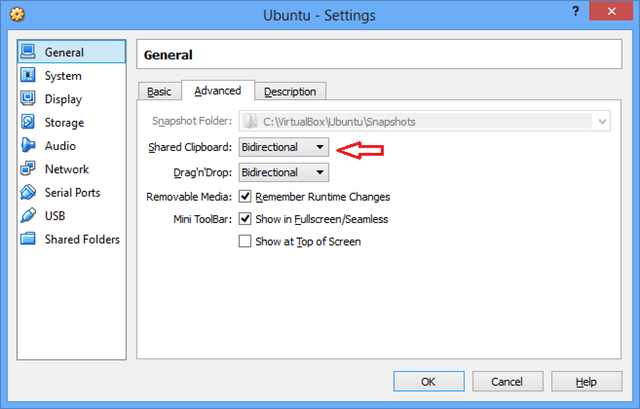
要开启Ubuntu下的虚拟机和宿主机之间的双向黏贴板的话,请在Ubuntu虚拟机上面点击 “设置”,之后找到“普通->高级标签”,选择这个功能来开启它。

现在,理论上,当你开启Ubuntu的虚拟机之后,按下“截屏键”,或者按下“Ctrl+截屏键”,虚拟机就应该为当前的桌面会话来张截屏。

之后你就可以通过在宿主机上面使用粘贴板的功能来看到那些图片了。

但是!如果你同时启用了Ubuntu虚拟机中的“3D 加速”功能,那些图片将会变得漆黑一片。

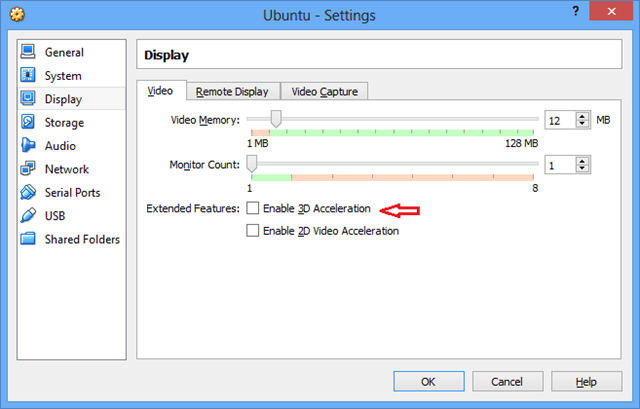
为了解决这个问题,你必须关闭Ubuntu虚拟机的3D加速功能!

关闭3D加速功能可以这样做:在Ubuntu虚拟机种点击“设置”,之后找到“系统->显示->显卡”标签,关闭3D加速

现在你必须在Ubuntu的虚拟机中设置关闭3D加速才能让截屏正常工作。现在打开一个虚拟机尝试来截个屏幕吧。

希望这个方法能够帮到你!

希望你喜欢!


via: http://www.liberiangeek.net/2014/02/daily-ubuntu-tips-fix-black-screen-in-ubuntu-guest-with-virtualbox-screen-capture/

译者:FineFan 校对:wxy

本文由 LCTT 原创翻译,Linux中国 荣誉推出